Send files to nearby devices.
Sendfetti sends photos, videos, whole folders, contacts and apps from one device to another over a direct Wi-Fi link between the two. You don't need a Wi-Fi network, mobile data or an account.
Pixel 11 has 184.6 GB free
Sending to Pixel 11
Sent 12 files to Pixel 11
Up to 100 MB/s
Over a direct 5 GHz Wi-Fi link between the two devices.
No network needed
The phones find each other over Bluetooth, then send over a direct Wi-Fi link between them.
No account
There's nothing to sign up for, and your files don't pass through any server.
How it works
Open Sendfetti on both phones
Tap Connect to a phone on each one. They find each other in a few seconds.
Check the code
Tap the other phone's name on one of them. Both phones show the same 4-digit code. If it matches, tap Accept on the other phone.
Choose and send
Pick photos, files, a folder, contacts, apps or a message, and tap Send. The phones stay connected, so either one can send more until you tap Disconnect.
What you can send
You can choose before you connect or after. Sendfetti is also in Android's Share menu, so you can send straight from Gallery, Files or Chrome.
If two phones lose each other partway through a transfer, it pauses and picks up where it stopped once they reconnect. Sending to several phones at once doesn't do this yet.
Other ways to connect
Open in a web page
Your phone makes its own Wi-Fi network. The other device joins it and opens a page in its browser, where it can download what you chose and send files and messages back. This works with iPhones, Android phones and computers, and needs Android 10 or newer on your phone.
Use a QR code
One phone taps Create a QR code and the other taps Join with a QR code, or scans it with its camera. Both phones need Android 10 or newer. On Android 13 and newer, this way doesn't need the Location permission.
Add a phone
Connect to one phone, then tap Add a phone to add more. Tick the phones you want, and Sendfetti sends to each of them in turn.
Your PC can join in too
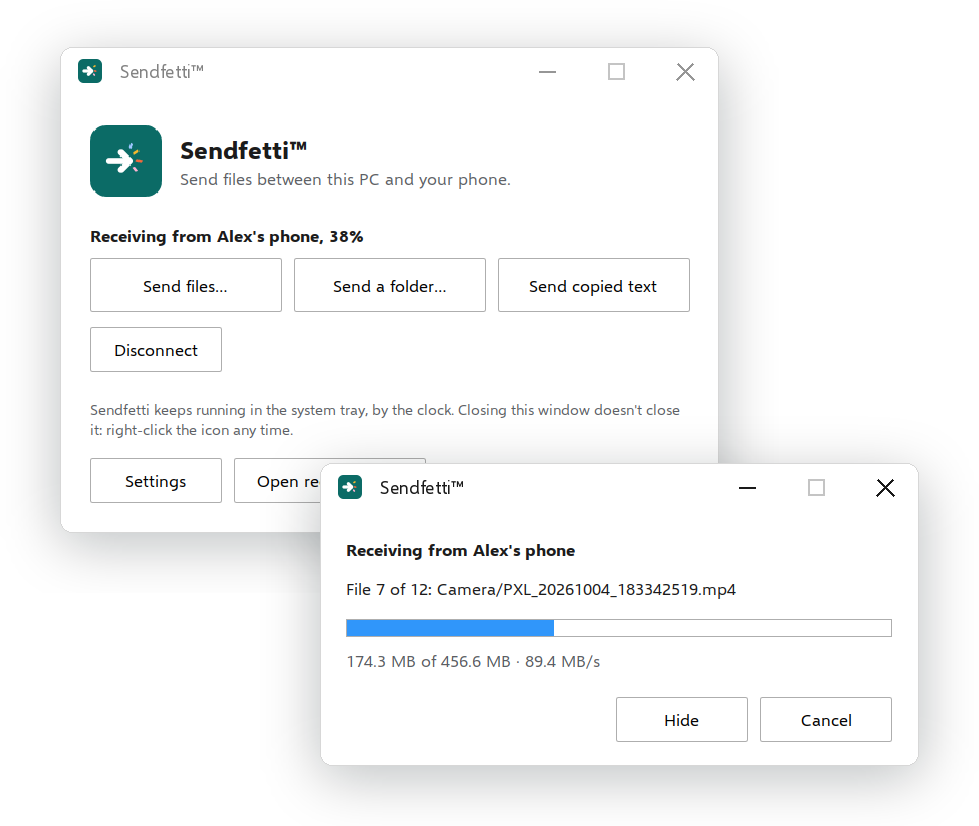
Sendfetti for Windows waits in the system tray, by the clock. Create a QR code on the PC and scan it with Sendfetti on your phone, or create the code on the phone and hold it up to the PC's camera. Then send photos, videos, folders and copied text either way.
- Files arrive in your Downloads folder, with any folders you sent kept as they were.
- When the PC shows the code, it makes its own Wi-Fi network for the transfer, so no router is needed, and it can usually stay on its own Wi-Fi as well.
- Free, with no account. Right-click the tray icon to connect, send files or change where they're saved.
For Windows 10 (version 2004) and Windows 11 on PCs with Wi-Fi. Download it now. It's coming soon to the Microsoft Store too.
Privacy
Sendfetti has no servers of its own and no accounts. Your files go from one phone to the other and nowhere else.
- Files, texts and contacts go straight between the phones and never over the internet.
- Connections between phones are encrypted. The browser page runs on your phone's own Wi-Fi network, with a new password each time.
- Android requires the Location permission to look for nearby phones. Sendfetti never reads or stores your location.
- Contacts are read only when you tap Contacts, and only the ones you tick are sent.
- The camera is on only while the QR scanner is open, and nothing is recorded.
- History and settings stay on your phone and aren't included in Android's backups.
What you need
Get Sendfetti
Coming soon to Google Play, free for Android 8.0 and newer. Sendfetti for Windows is free to download now, and coming soon to the Microsoft Store.